Guide
Gravity for Mac: a notes app in your menu bar
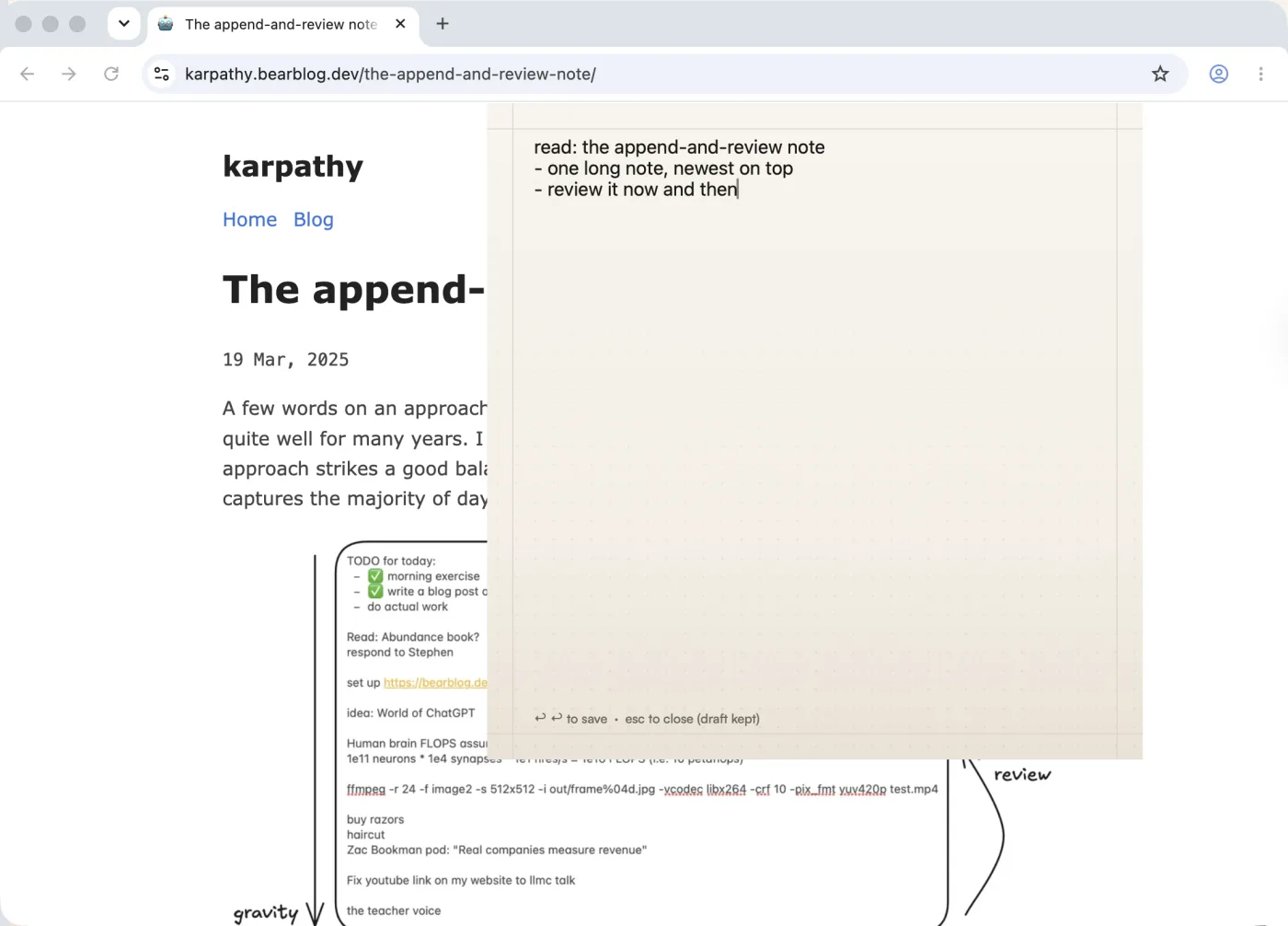
Gravity is a notes app that lives in your Mac's menu bar. Press Option-Space in any app, type what's on your mind and press Return twice. The panel saves the note and closes, and you're back where you were before the thought had a chance to derail you.
I'm Tristan, and I build Gravity on my own. I wanted a Mac notes app that costs nothing in attention: no window to find, no folder to pick, no title to invent. The Mac app is the fastest way I know to get a thought out of my head.
Capture from anywhere
- Option-Space opens the capture panel over any app. Type, press Return twice, and it's saved.
- Option-Shift-Space adds to your last note instead, which is handy when you're taking notes on an article, a video or a meeting.
- Command-Return also saves, and Escape closes the panel with your draft kept for next time.
- You can change both shortcuts in Settings.
Gravity stays out of the Dock until you open its window, so it never gets in the way of the apps you're actually using.
One list, newest first
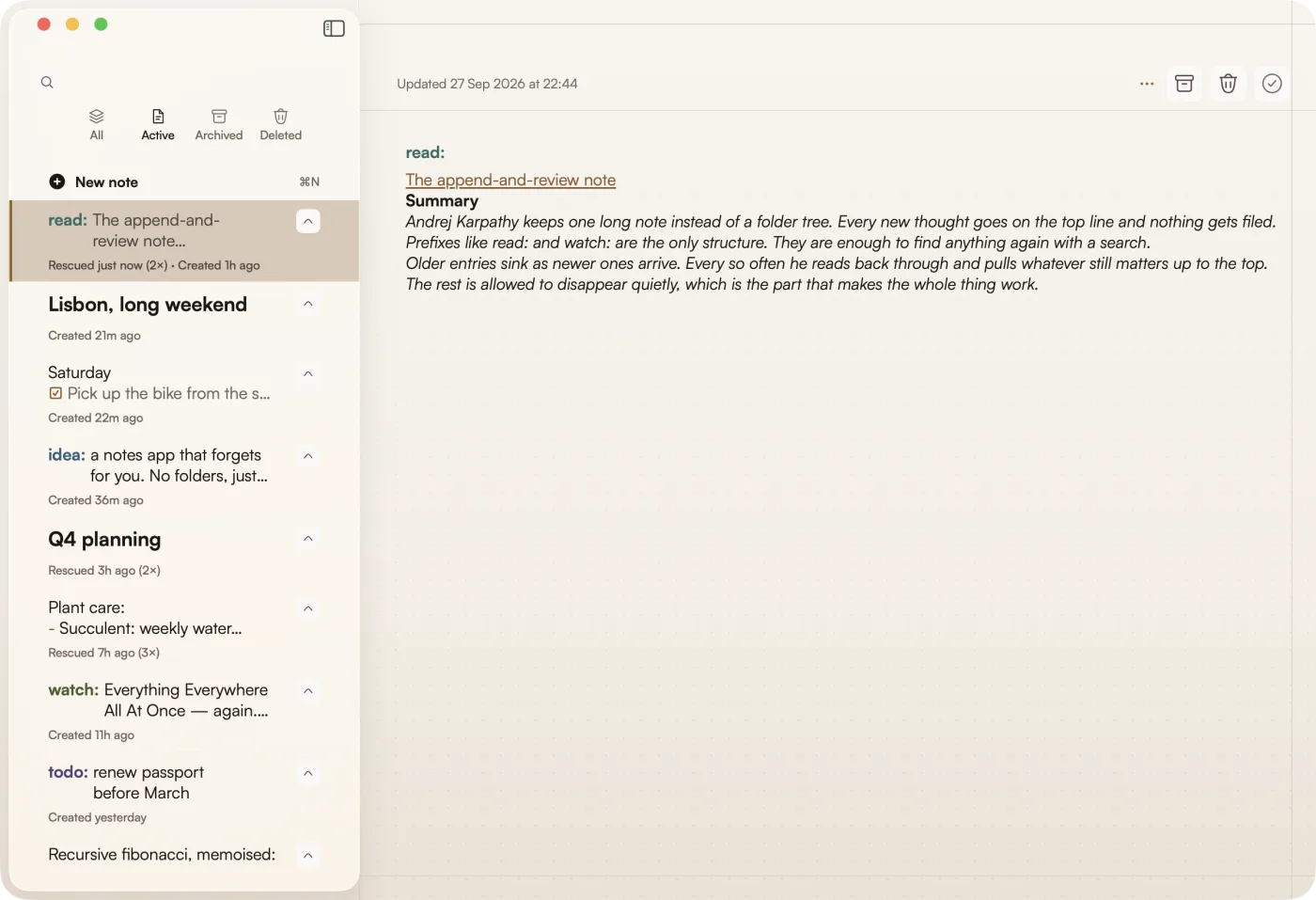
Every note goes to the top of one list. Notes you don't touch sink over time, so whatever you're thinking about this week stays in view without any filing. When an older note still matters, select it and press R to rescue it back to the top. A archives, Delete deletes, and you get a few seconds to undo either.
The idea comes from Andrej Karpathy's append-and-review note: write everything in one place, read back through it now and then, and move up whatever you still care about.
Markdown, checklists and tags
Headings, bold, italics, lists, links, quotes and code are styled as you type, and notes are saved as plain Markdown text. Command-B, Command-I and Command-K add bold, italics and links, and Shift-Command-L starts a checklist you can tick straight from the list.
Start a note with a word and a colon, like todo:, idea: or read:, and it gets its own colour and a tag you can filter by. I've written about how I use prefixes instead of folders.
Search that doesn't need the internet
Command-F searches every note on your Mac, offline, and it can include archived notes too. It matches the start of words and ignores accents, so you find the note even when you only half remember it. If you're curious how it works, I wrote up how I rebuilt Gravity's search.
Your iPhone and Android phone too
Your notes live on your Mac first. Turn on iCloud sync to share them with Gravity on iPhone and iPad, or turn on Gravity Sync (Beta), free during the beta, to keep one list in step with an Android phone as well. There's more on syncing with Android and on how Gravity works offline.
You don't need an account to use Gravity. Export every note as Markdown, plain text or a JSON backup whenever you like, and bring notes in from Apple Notes, Bear or Obsidian with the free import tool.
Price
Gravity for Mac is $9.99 once, on the Mac App Store. No subscription, no in-app purchases and no ads. The iPhone and iPad app and the Android app are sold separately. It needs macOS 15 or later.
Questions
Is Gravity a replacement for Stickies?
It does a different job. Stickies keeps a few notes on your desktop where you can see them. Gravity is for catching the passing thoughts that would otherwise pile up as stickies, and finding them again later. I compared them in how to use sticky notes on a Mac.
Does Gravity work offline on the Mac?
Yes. Every note is stored on your Mac, and writing, search and archiving all work without a connection. Sync catches up when you're back online.
Can I use my own keyboard shortcut?
Yes. Both the capture shortcut and the add-to-last-note shortcut can be changed in Settings.
Does it sync with Apple Notes?
No. Gravity keeps its own list. You can move notes across once with the import tool: Apple Notes on macOS Tahoe exports notes as Markdown, and the tool turns those files into one file Gravity can import.