Guide
Sticky Notes on Mac: How to Use Stickies
Every Mac comes with Stickies, a small app that puts note windows on your desktop. It takes a few seconds to start, and it's the right tool when you want a reminder in view while you work. Below is how to use it well, where it falls short, and the other options macOS gives you: Apple Notes, Quick Note and desktop widgets.
I make Gravity, a notes app for the Mac menu bar, so I've included it where it fits. It solves a different problem from Stickies, and I'll say which is which.
Open Stickies and make a note
Stickies is in your Applications folder. The quickest way in is Spotlight: press Command-Space, type "Stickies" and press Return.
Choose File > New Note, or press Command-N, and a note appears on the desktop. Type into it. Stickies saves as you go, so there's no save button. When you collapse a note, its first line becomes the title, so start each note with something you'd recognise at a glance: "Renew parking permit" tells you more than "Important".
To get rid of a note, click the small box in its top-left corner, then Delete Note. Copy anything you want to keep first.
Notes only show while Stickies is running. If yours vanish, the app has probably been quit. Open it again and they come back.
Lists, colours and pictures
Press Option-Tab to start a list, then Return after each item. Tab indents an item and Shift-Tab moves it back out. Press Return twice at the end to get back to normal text. A short checklist for packing or a call works well. A list that needs scrolling is past what a sticky note is good at.
The Color menu changes a note's colour. One colour for work and one for home is useful. If you need a key to remember what each colour means, you have too many.
Font > Show Fonts changes the type. You can also drag a picture or PDF into a note and use Markup to crop it, rotate it or write on it, which helps when a reminder depends on something visual.
Arrange notes and keep one on top
Drag a note by its title bar to move it, and drag an edge to resize it. Double-click the title bar to collapse a note down to its first line.
Three options in the Window menu are worth knowing:
- Float on Top keeps a note above every other window, so it stays visible while you work in another app.
- Translucent makes the note see-through, which helps when a floating note covers something.
- Arrange By groups your notes by an option you pick, which tidies a messy desktop.
If you like a note's colour and font, Window > Use as Default makes new notes start the same way.
Why sticky notes pile up

A sticky note is easy to add and easy to ignore. Finished notes stay where they are, next to new ones, and after a week the screen holds a dozen notes that all look equally urgent. They slide behind windows. You stop reading them, which defeats the point.
Stickies also stays on one Mac. It doesn't sync through iCloud, so a reminder you wrote at your desk isn't on your phone when you're out. File > Export All to Notes copies every sticky into Apple Notes, sorted into folders by colour, and the originals stay in Stickies. The copies don't update when you change a sticky later.
Two habits keep Stickies useful. Give each note one job, and delete it the moment the job is done. When notes start to pile up anyway, you may need a different tool for some of what you've been putting in them.
Other ways to keep quick notes on a Mac
Apple Notes
Apple Notes is the obvious next step. It's free, syncs with your iPhone through iCloud, and handles long notes, folders and attachments. The cost is that every note has to go somewhere, which slows you down when you only want to catch a thought.
Quick Note
Quick Note is part of Apple Notes. Press Fn-Q (Globe-Q on newer keyboards), or set a hot corner in System Settings > Desktop & Dock > Hot Corners, and a small note window opens over whatever you're doing. Quick Notes are saved in Apple Notes in their own folder. It's quick to open but doesn't stay on the desktop like a sticky.
Desktop widgets
Desktop widgets let you put the Notes widget on your desktop, showing a single note or a folder. It's a compact way to keep one list in view, but you can't place it freely or edit in it the way you can with a sticky.
Gravity
Gravity is for people whose sticky notes are really passing thoughts: an idea in the middle of a task, a name to look up, something to tell someone later. It lives in the menu bar. Press Option-Space in any app and a capture panel opens over your work. Type, press Return twice, and the note is saved and the panel closes. Option-Shift-Space adds to the note you wrote last.
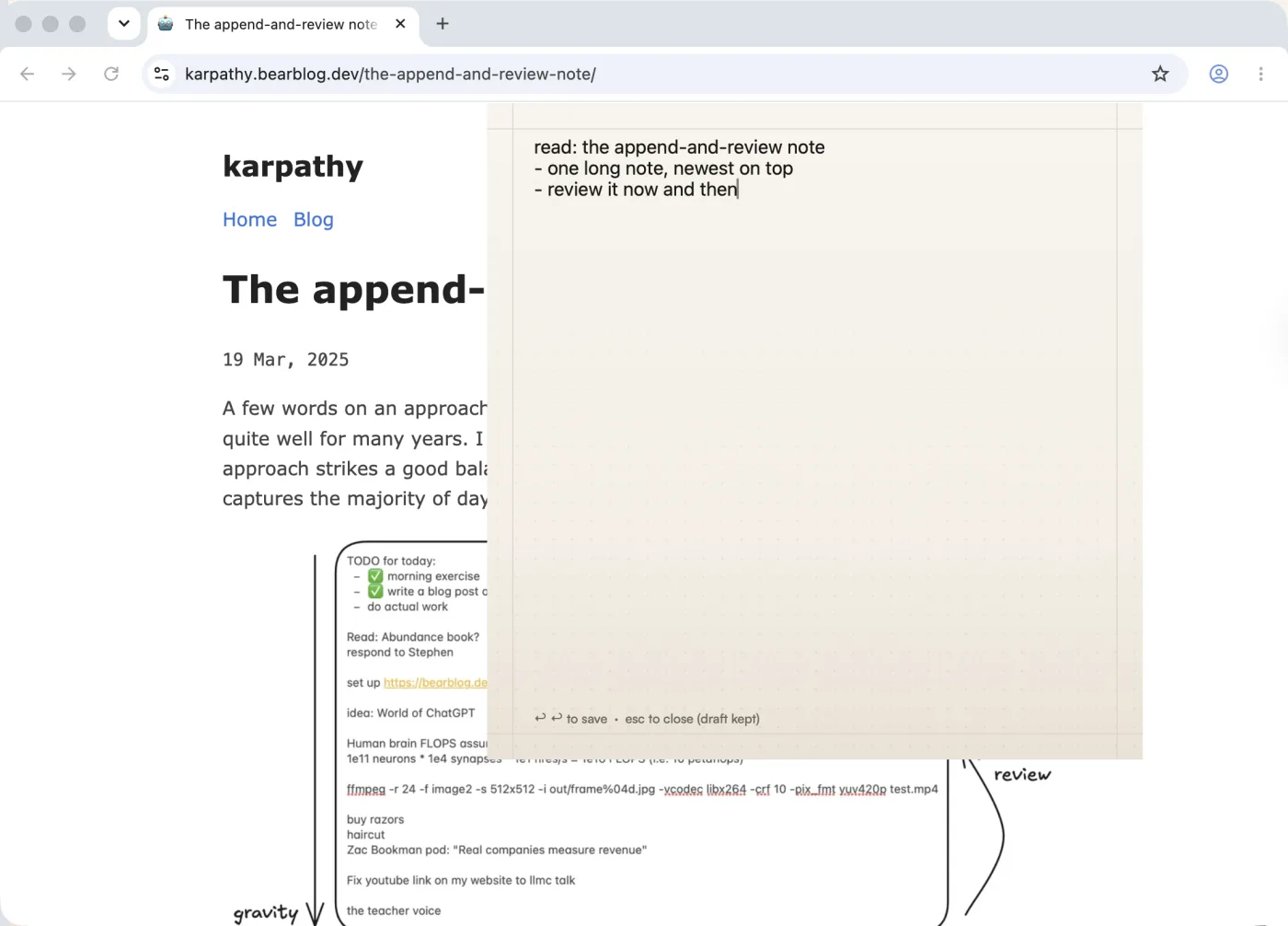
Gravity doesn't put notes on your desktop or float them over your windows. Notes go into one list with the newest at the top, and the ones you don't touch sink, so finished thoughts move out of the way without you deleting them. Search works offline, and notes can sync with Gravity on your iPhone through iCloud. The Mac app is $9.99 once, with no subscription. How capture and search work has more detail.
The choice comes down to what you need. If the point is to see a reminder all day, use Stickies with Float on Top. If you want a thought out of your head quickly so you can get back to work, a capture shortcut suits you better.
Frequently asked questions
How do I open Stickies on a Mac?
Press Command-Space, type "Stickies" and press Return. You can also find it in the Applications folder in Finder or search for it in Launchpad. Then press Command-N for a new note.
How do I keep a sticky note on top of other windows?
Click the note, then choose Window > Float on Top. It stays in front of every other app until you turn the option off. Window > Translucent makes it see-through if it covers something you need.
Do Stickies sync between Mac and iPhone?
No. Stickies notes stay on the Mac where you made them. File > Export All to Notes copies them into Apple Notes, which syncs through iCloud, but the copy doesn't update when you change the sticky later.
Where did my sticky notes go?
Usually Stickies has been quit, and notes only show while the app is open. Open Stickies again and they reappear. If a note is hidden behind other windows, click Stickies in the Dock to bring all your notes to the front.
How do I change the colour of a sticky note on a Mac?
Click the note and choose a colour from the Color menu. Window > Use as Default makes new notes use the same colour and font.