Guide
Best Note-Taking Apps for Mac: 6 Compared
The best note-taking app for Mac depends on what you write. Apple Notes is the free default for everyday notes, Bear suits Markdown writing, Obsidian suits linked research, Notion suits shared team documents, Drafts is an inbox for text you'll send elsewhere, and Gravity is a menu bar app for quick personal capture. Below are all six, then a short way to test them with your own notes.

How do I choose a note-taking app for Mac?
Start with the notes you actually make. A few short reminders during the day need a different tool from a chapter draft or a shared project plan. Write down three recent notes you wish you'd captured sooner and mark what each needed: a passing thought saved fast, a longer piece with headings, notes that link to other ideas, or notes colleagues can edit with you.
Try a two-day capture test before you install anything. Each time you reach for a note, write down what you needed to save and where you were working. A meeting action, an idea while reading and a draft paragraph may call for different tools. Choose around the notes you write most often and not around the longest feature list.
What is the best free note-taking app for Mac?
Apple Notes
Apple Notes is free, comes with your Mac and syncs through iCloud to your iPhone and iPad. It handles quick thoughts, long notes, checklists, tables, images and web links, with folders, tags and Smart Folders for organising. You can collaborate on a note with other people.
It also has Quick Note: press Fn-Q (Globe-Q on newer keyboards), or set a hot corner in System Settings > Desktop & Dock > Hot Corners, and a small note window opens over whatever you're doing. If you already live in Apple's ecosystem, start here. The limit is that every note needs a home, which slows a one-line thought. My guide to how to organize notes on iPhone covers the same folder and tag tools.
Which Mac app is best for writing in Markdown?
Bear
Bear is a Markdown notes app for Mac, iPhone and iPad. It organises with tags and not folders, which suits articles, reading notes and drafts you revise over time. It's free for basic use on one device. Syncing across devices needs Bear Pro at $2.99 per month or $29.99 per year, with a seven-day trial. It's Apple-only, so it won't help if you also use Windows or Android.
Which Mac app is best for linked notes?
Obsidian
Obsidian stores notes as Markdown files in a folder on your Mac, with links, backlinks, a graph view and community plugins. The app is free for personal and commercial use, and Sync costs $4 per month billed annually. Search works offline.
Choose it when links between ideas are part of your method, such as research or a personal knowledge base. It asks you to design and maintain the structure, so it's more than you need for one-line reminders. My Obsidian alternatives post covers lighter options.
Which Mac app is best for team documents?
Notion
Notion is a cloud workspace for shared pages, databases and team documents. It has a free plan, and paid plans start at roughly $10 per member per month when billed annually. Notion shows prices in your local currency, so check your region.
It makes sense when a team needs common project pages. For one-line reminders it's overkill, and your notes live in Notion's cloud and not in files on your Mac.
Which Mac app is best for text you'll send elsewhere?
Drafts
Drafts opens to a blank draft, so you capture text first and then send or process it with tags, flags and actions. It runs on Mac, iPhone, iPad and Apple Watch. The base app is free, and Drafts Pro costs $2.99 a month or $24.99 a year and adds custom actions, themes and workspaces. It fits when most of what you write is headed somewhere else, such as a message, a document or a task. If you want notes to stay put in one list, the inbox-and-action approach adds a step.
Which Mac app is best for quick personal capture?
Gravity
I make Gravity, so weigh this section with that in mind. It's a menu bar app for short personal notes in one list. Press Option-Space in any app and a capture panel opens over your work. Type, press Return twice and the note is saved and the panel closes. Option-Shift-Space adds to the note you wrote last.
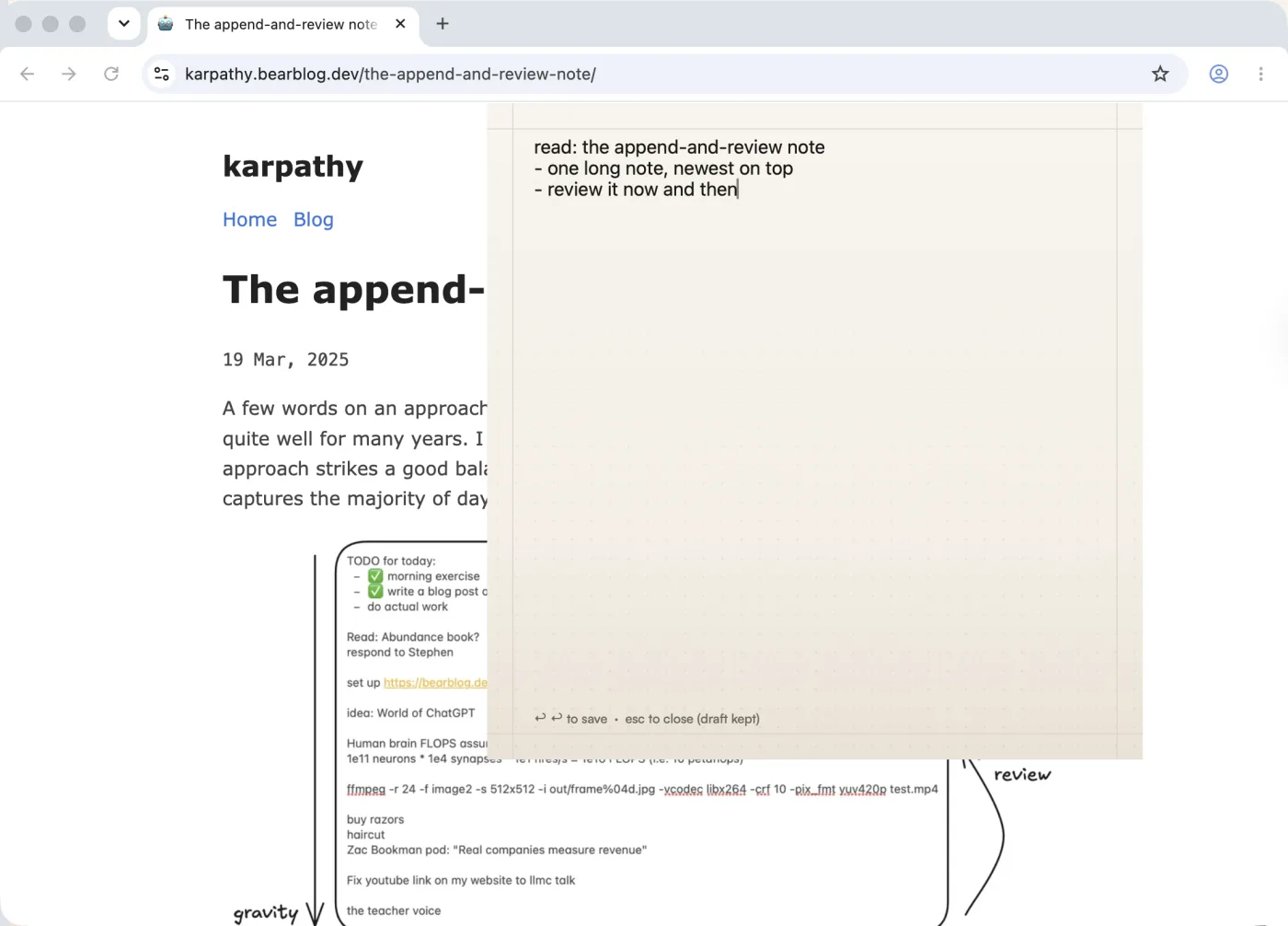
Notes land at the top of the list. Notes you leave alone sink, and pressing R rescues the selected one. Search works offline. Notes can sync with Gravity on your iPhone and iPad through iCloud, or through Gravity Sync (Beta) if you also carry an Android phone. The app is $9.99 per platform. iCloud sync between iPhone, iPad and Mac is free, and Gravity Sync, which adds Android and your AI apps, is free during the beta and becomes a subscription after it.
Gravity has no folders, no linked notes, no collaboration and no desktop sticky windows, and it's not for long documents. Keep those in a writing app. If you want a note floating on your desktop, see sticky notes on Mac. The fast capture guide and append and review explain the list.
How do the Mac note-taking apps compare?
| App | Best for | Quick capture | Price |
|---|---|---|---|
| Apple Notes | Everyday notes, free | Quick Note (Fn-Q or hot corner) | Free |
| Bear | Markdown writing with tags | Open the app | Free on one device; Pro $2.99 per month for sync |
| Obsidian | Linked notes and research | Open the app and a note | Free; Sync $4 per month billed annually |
| Notion | Shared team documents | Open a page | Free plan; paid from about $10 per member per month |
| Drafts | Text headed elsewhere | Opens to a new draft | Free; Pro subscription |
| Gravity | Quick personal capture in one list | Option-Space from any app | $9.99 per platform |
How do I check sync, privacy and price before switching?
Before you move everything, check how an app stores notes and how they reach your other devices. A Mac-only workflow is fine for desk notes. If you need the same note on your iPhone, test the sync path with a note you can safely delete. Gravity keeps notes on your device, and its search works offline. If you also use Android, Gravity Sync (Beta) keeps one list in step across iPhone, iPad, Mac and Android, and it's free during the beta.
If you move from another app, try a small batch first. The import tool converts Markdown and CSV exports into a file Gravity can import and runs in your browser. Make sure your key notes are easy to find before you bring over the rest. You can use one app for quick capture and another for long writing. Avoid adding steps just to keep every note in one place.
Fast capture only works if you can find the note again, so pick a simple review habit. A scan on Monday morning is enough for many people: look at the newest notes, bring forward what's tied to current work and let stale thoughts stay out of your way.

Frequently asked questions
What is a good Mac app for quick notes?
Apple Notes is a free starting point, with Quick Note and iCloud sync. If you want a menu bar capture panel that opens from any app, Gravity uses Option-Space and saves with two presses of Return. Pick the one that matches how you capture.
Can I use Apple Notes for long-form writing?
Yes. Apple Notes supports paragraph styles, text formatting, lists, checklists and tables, with folders and search. If you want a Markdown workflow, compare it with Bear or Obsidian before moving a large collection.
Does Gravity work offline on Mac?
Yes. Notes are stored on the device, and search works offline. The capture panel opens with Option-Space without switching apps. Turn on iCloud sync to share notes with Gravity on iPhone and iPad, or Gravity Sync to add an Android phone too.
Can I share notes with other people?
Apple Notes supports collaboration, and Notion is built for it. Gravity is for personal notes and has no collaboration, so use a shared tool if a team works on the same document.
How do I find old notes on a Mac?
Use the app's search before adding more folders or labels. Apple Notes searches note text, and Gravity's search works offline. A short weekly scan also keeps active thoughts near the top.