Guide
Quick Notes on iPhone: How to Set Up and Use Them
Quick Notes on iPhone let you write something down over whatever app you're using. Add the Quick Note control to Control Centre, tap it, type, and tap Save. Apple files the note in a Quick Notes folder inside the Notes app. You can also start one from the Action button or from the share sheet in supported apps. This page covers each route, where the notes end up, and a few other quick ways to start a note.
How do I add Quick Note to Control Centre?
Swipe down from the top-right corner of your iPhone to open Control Centre, then touch and hold an empty area until the controls start to wiggle. Tap Add a Control, search for Quick Note and tap it. Drag the control wherever you want it.
To use it, open Control Centre from any screen and tap the Quick Note button. A note opens over the app you're in. Type, then tap Save. Nothing gets in the way of whatever you were doing.
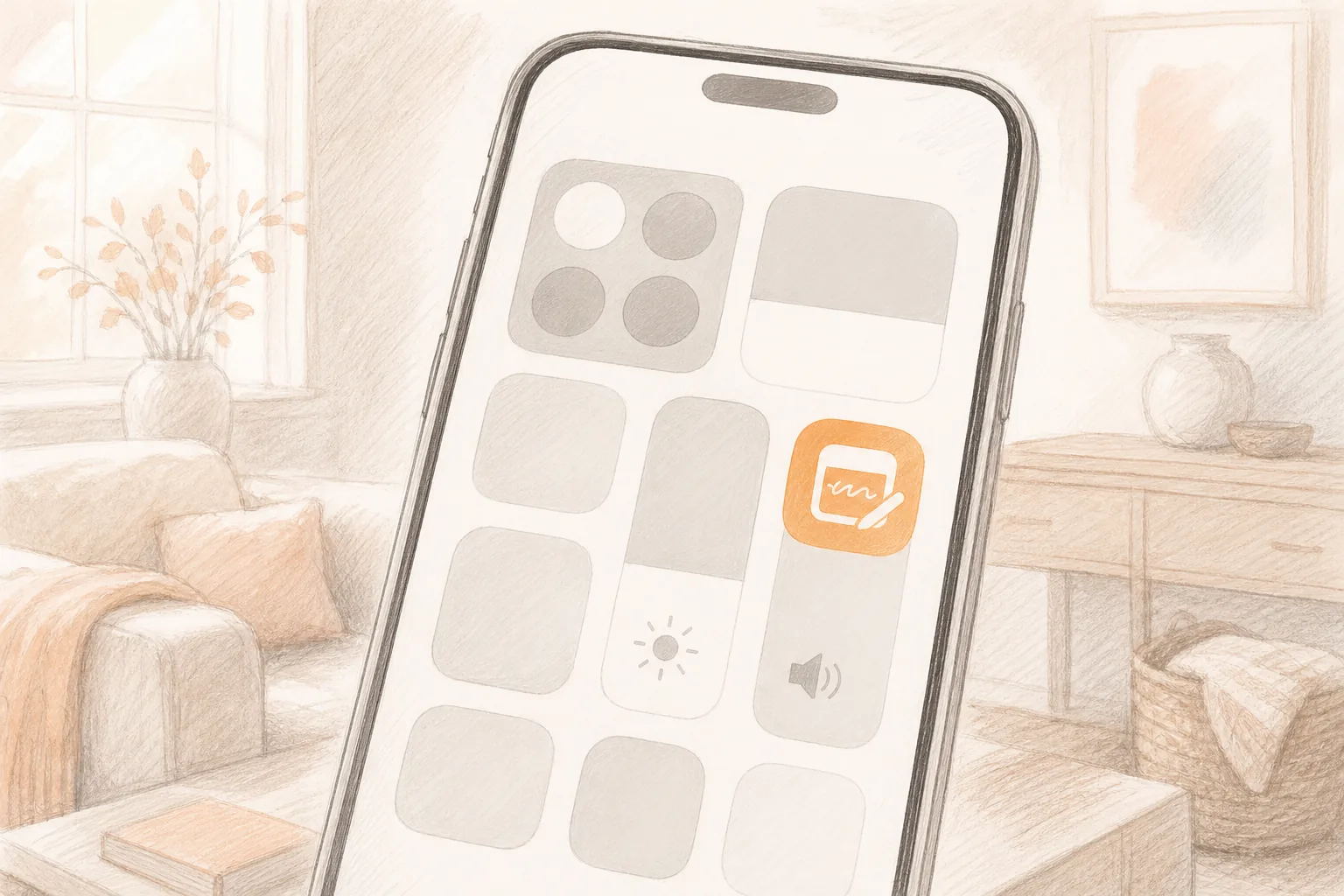
This route suits a thought that stands alone. You're looking at a shop page and remember a measurement to check at home, so you write that down. The note won't include the page you were looking at. For that, use the share sheet.
To open Control Centre from the Lock Screen, allow it in Settings under Face ID & Passcode (or Touch ID & Passcode), in the list of things you can access when locked. Your passcode settings decide what's available from a locked phone.
Can I open a Quick Note with the Action button?
On an iPhone with an Action button, yes. Open Settings, tap Action Button, swipe to Controls, tap the button below it and choose Quick Note. Apple's guide warns that for Controls, Shortcut and Accessibility, the Action button does nothing until you pick a specific option underneath. After that, a press and hold opens a note.
How do I save a web page or link to a Quick Note?
Use the share sheet when the page matters as much as your own words. Apple's instructions say to tap the share button in a supported app, then tap Add to Quick Note, then Save.
In Safari:
- Open the page and let it load.
- Tap the Share button.
- Scroll the options and tap Add to Quick Note. If you can't see it, scroll further down the list.
- Add a line of your own if you like, then tap Save.
The note carries a link to the page. A few words in your own voice, such as "check the size before ordering", tell you later why you saved it. This works for articles to read, a product to compare or a recipe to try.
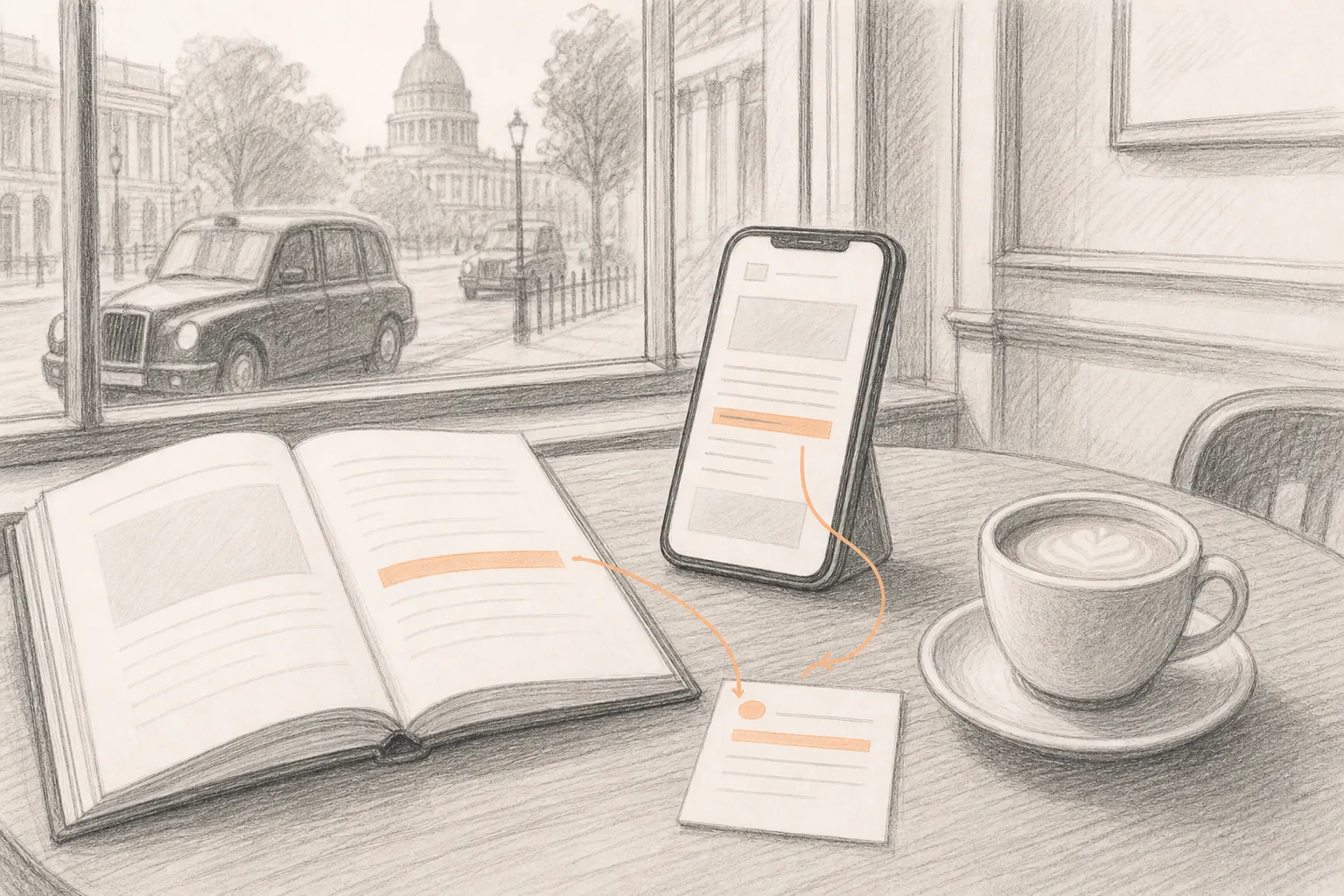
What gets attached depends on what the app shares. Maps, other browsers and many apps offer their own version of the option, and the label may differ. For receipts, photos or scanned papers, a regular note is easier, since Notes has its own attach and scan tools.
Where do Quick Notes go on iPhone?
They're in the Notes app, in a folder called Quick Notes. Open Notes, then tap the back arrow until you see your folders list (you may need more than one tap). Tap Quick Notes and open any note to read or edit it.
Quick Notes sync through iCloud, like other notes, as long as Notes is switched on for iCloud on each device and they use the same Apple Account. A Quick Note you make on your iPhone appears on your iPad and Mac.
Two limits are worth knowing:
- You can't lock a Quick Note while it's in the Quick Notes folder. Move it to another folder first, then lock it.
- If you move one to a different folder, it becomes a standard note and stops appearing as a Quick Note in other apps.
So keep the Quick Notes folder for fast capture, and move out only the notes that need a different home. If a note goes missing, how to recover deleted notes on iPhone covers where to look, and how to organize notes on iPhone covers folders and tags.
What other ways are there to start a note quickly?
Pick the one that fits your hands and the moment.
Long-press the Notes icon. Touch and hold the Notes icon on your Home Screen. The menu can offer a new note, a photo or a document scan. This opens a regular note in Notes, not a Quick Note.
Ask Siri. Say something like "Create a note about the parcel pickup." Check the wording afterwards, especially names. If a thing has a due time, use Reminders instead, because a reminder can nudge you at the right moment and a note can't. For more than a line, BrainFlow, an app of mine, lets you tap record and talk, then writes it up as a note with the tasks listed.
Back Tap. Back Tap runs a Shortcut when you double or triple tap the back of your iPhone. Make a Shortcut that creates a note, then go to Settings, Accessibility, Touch, Back Tap and assign it. Try it once before you rely on it, since Back Tap can trigger by accident.
A capture app. If you want a single list for passing thoughts, a dedicated capture app is another approach. I make Gravity for iPhone and iPad. It opens ready to type, and the Home Screen widget has New and Paste buttons. The widget captures notes. It doesn't display them. Notes in Gravity go into one list with the newest at the top, and ones you ignore sink. I wrote about how capture and search work.
Frequently asked questions
How do I add Quick Note to Control Centre?
Open Control Centre, touch and hold an empty area, tap Add a Control, search for Quick Note and tap it. After that, open Control Centre from any screen and tap the Quick Note button to start writing.
Where are Quick Notes saved on iPhone?
In the Quick Notes folder in the Notes app. Open Notes, go back to the folders list and tap Quick Notes. If you move a note to another folder, it becomes a standard note.
Can I use Quick Notes on iPhone and iPad?
Yes, as long as both devices use the same Apple Account and have Notes turned on in iCloud. Make a Quick Note on one device, then look in the Quick Notes folder on the other and allow a moment for syncing.
Can I lock a Quick Note on iPhone?
Not while it's in the Quick Notes folder. Move it to another folder, and it becomes a standard note that you can lock. It then stops appearing as a Quick Note in other apps.
Can I start a Quick Note from the Lock Screen?
If you allow Control Centre access while locked, you can open Control Centre from the Lock Screen and tap Quick Note. On an iPhone with an Action button, you can also assign Quick Note to it.